
Setting Up Video Output Profiles
How to configure MediaLive video output profiles and profile groups for Nomad Media live channels.
Overview
This guide covers video output profile setup, options, and examples for adjusting Nomad Media Live Channel outputs.
Prerequisites
1. MediaLive enabled in your Nomad Media AWS account
Contact Nomad Media if MediaLive is not enabled in your account.
2. Admin access to the Admin Console
Managing video output profiles is done via the Administrator Console.
Concepts
HLS output profile groups in AWS MediaLive are pre-configured settings for packaging and delivering output to AWS Elemental MediaPackage channels. These output groups support delivery protocols like HLS. Nomad Media Live Channels require defined video output profiles to function.
The default Nomad Media installation includes one live output profile group with the following four profiles:
- UHD output
- HD output
- 2.5mb output
- 1mb output
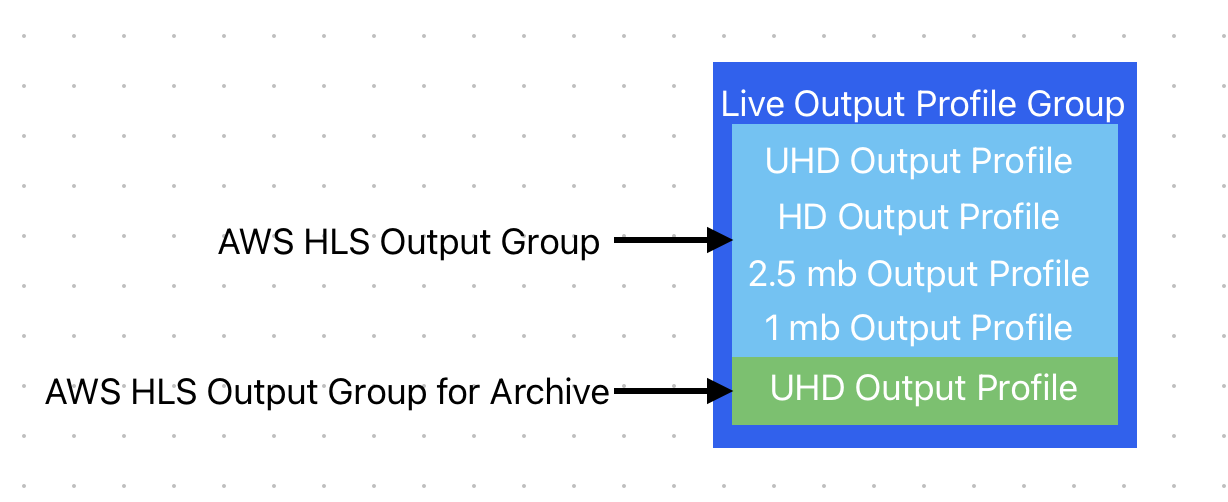
All output profiles in a live output profile group (default or custom) must be at the same FPS (frames per second). AWS requires segment sizes to be the same across all renditions in an HLS output group. See Troubleshooting below.
For the default live output profile group, the highest rendition output (UHD) is used for archiving.
The default profile group is named "Live Output MediaStore Defaults" behind the scenes.
Create Live Output Profiles
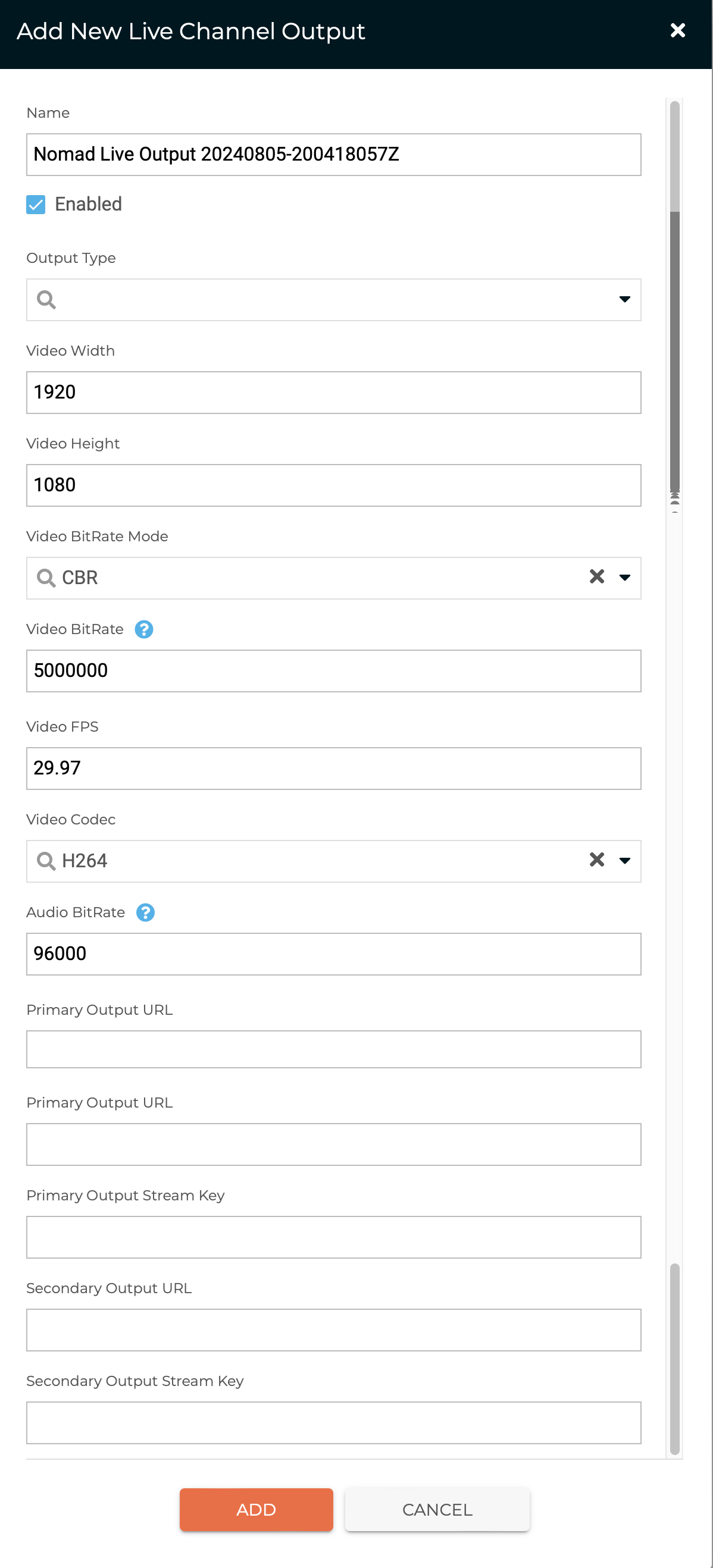
The live output profile type is currently used for RTMP Sharing only. Other types are reserved for future use.
Using the Admin Console, new live output profile types can be created. These are not tied to a profile group until explicitly assigned (see next step). The default values can be changed as needed.
Create a Custom Live Output Profile Group
There is currently no UI for creating live output profile groups — use the API.
Create profiles first (to obtain their IDs), then POST to the Live Output Profile Group API:
POST {{serverUrl}}/api/liveOutputProfileGroup
{
    "name": "Custom Live Output Profile Group",
    "enabled": true,
    "manifestType": "HLS",
    "isDefaultGroup": false,
    "outputType": {
        "enumValue": 0,
        "description": "MediaStore",
        "type": "MediaLiveOutputTypes",
        "lookupTypeId": "ac5146ea-4c01-4278-8c7b-0117f70c0000",
        "id": "ac5146ea-4c01-4278-8c7b-0117f70c0100"
    },
    "archiveOutputProfile": {
        "description": "UHD output",
        "type": "liveOutputProfile",
        "id": "fd3f3bbf-3ab0-4a35-9343-01e70a060bd9"
    },
    "outputProfiles": [
        {
            "description": "UHD output",
            "type": "liveOutputProfile",
            "id": "fd3f3bbf-3ab0-4a35-9343-01e70a060bd9"
        },
        {
            "description": "HD output",
            "type": "liveOutputProfile",
            "id": "448444cb-0c16-4a5d-8aea-eb3a0f369924"
        },
        {
            "description": "2.5mb output",
            "type": "liveOutputProfile",
            "id": "12ab28a5-92ef-4985-bc87-326c59cde77c"
        },
        {
            "description": "1mb output",
            "type": "liveOutputProfile",
            "id": "3b117f43-4f3d-4a80-8429-c50a2c47cc2c"
        }
    ]
}
Only one live output profile group can be set as the default. Ensure all custom groups have"isDefaultGroup": false.
Select a Custom Live Output Profile Group
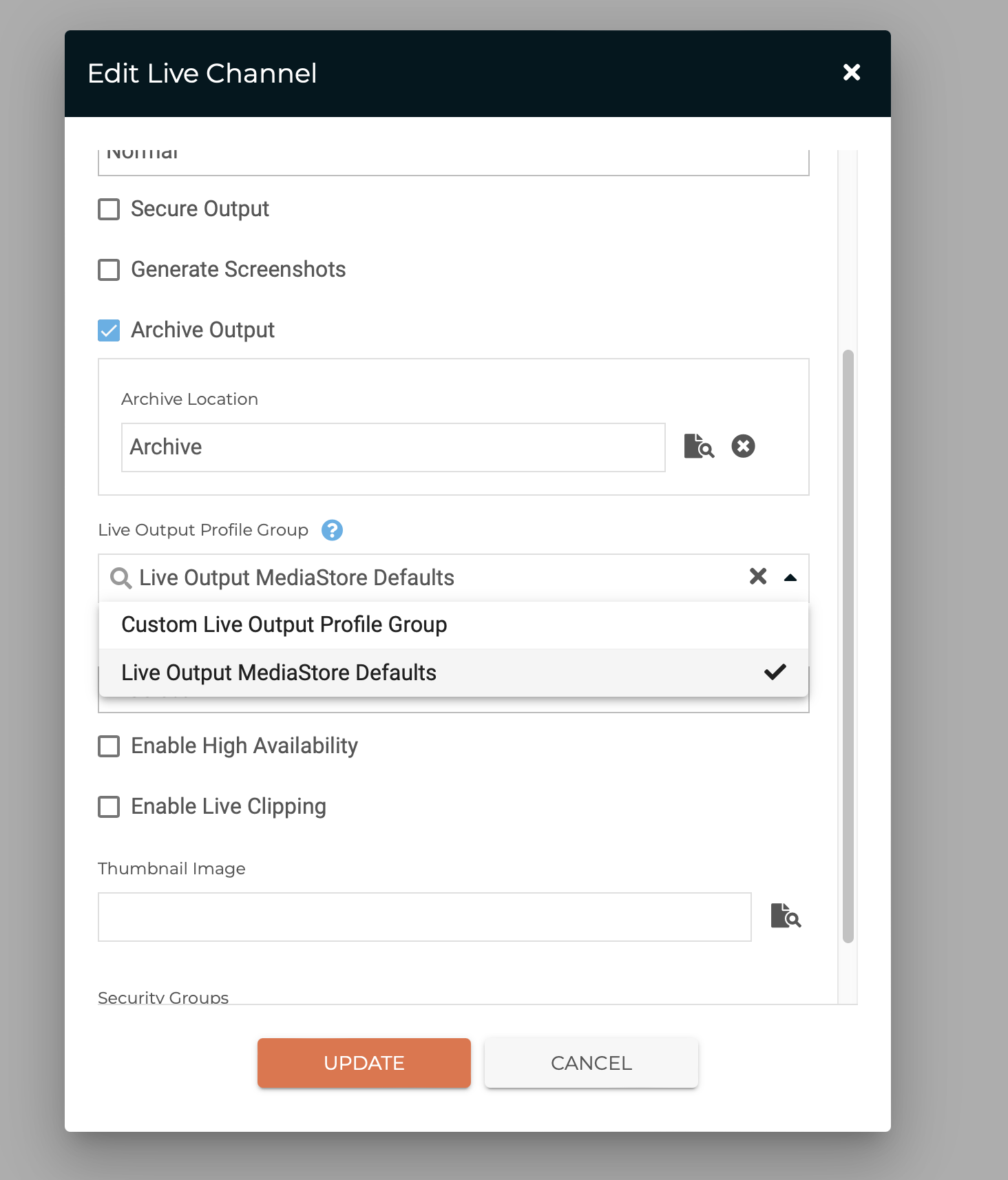
After creating a custom profile group, open an existing or new live channel. A dropdown will appear allowing you to switch between available live output profile groups.
External Output Profiles / RTMP Sharing
For configuring external output profiles (RTMP Sharing), see:
Troubleshooting
Mixed FPS error on Live Channel startup
If you see an error on channel startup about segment sizes, your output profile group contains profiles with mixed FPS. Per AWS: segment sizes must be the same across all renditions in an HLS output group. Check the configured segment size, GOP length, and frame rate for each rendition.
Disabling a problematic profile
If a live output profile is causing issues, uncheck the Enabled checkbox in the Admin Console. This prevents Nomad Media from sending that profile to AWS — note that this disables the profile system-wide.
Updated 7 months ago