
Phenix RTS Integration
OVERVIEW
This guide will help with the setups, options and examples for integrating Nomad Media with Phenix RTS streaming services.
PREREQUISITES
1. Obtain your credentials from Phenix
Please reach out to Phenix to obtain your application Id and secret. See below for support information.
2. Create Phenix secret in AWS Secrets Manager
In your AWS management console navigate to Secrets Manager and create a secret. Make a note of the name of your secret. It's recommended to name the secret nomad/{projectPrefix}/phenix. By default, nomad secrets that start with nomad/{projectPrefix}/ can be accessed by the Nomad Media environment. Any other named secrets will need to have custom security IAM permissions added.
Here is example of what your secret key may look like.
{
    "appId": "nomad.media",
    "secretCode": "xxxxxxxxxxxxxxxxxxxxxxx"
}
The appId and secret value above must match what Phenix provided for you.
3. Edit configuration files
In your AWS management console navigate to S3, find your system-system folder and edit the config.json file. Locate the application/phenixSettings section and update the secretKey and set the value to the name of the secret that was added in the previous step. See below on all the configuration options available.
 "application/phenixSettings": {
    "secretKey": "nomad/dev-05/phenix",
  },
Next, in the same configuration file locate the application/nomadSettings section and add the config to enable Phenix realtime live channels inside Nomad Media.
"application/nomadSettings": {
    "liveChannelRealtimeType": "Phenix",
}
Next, in the same S3 system-system config file from above locate the application/videoPlayerSettings section and update/add the WebRTC player to Phenix. Note do not remove the other players, this is a slim down view of what config is relevant for Phenix.
"application/videoPlayerSettings": {
    "players": [
      {
        "format": "webrtc",
        "player": "phenix"
      }
    ]
  },
Next, for each intended application to use with Phenix, we need to update the configuration files to make sure they have the WebRTC player set to phenix. Note do not remove the other players, this is a slim down view of what config is relevant for Phenix.
"players": [
  {
    "format": "webrtc",
    "player": "phenix"
  }
]
"players": [
{
"format": "webrtc",
"player": "phenix"
}
]"players": [
{
"format": "webrtc",
"player": "phenix"
}
]4. Recommend Token Duration for Clients
Phenix recommends setting your defaultEdgeAuthDigestTokenExpirationInSeconds configuration value (see below) to 5 minutes or less. Here is an example on how to configure that. This is an optional value and it will default to 21600 seconds which is 6 hours.
 "application/phenixSettings": {
    "defaultEdgeAuthDigestTokenExpirationInSeconds": 300,
  },
5. Create new AWS API Gateway Public Route
In your AWS management console navigate to API Gateway and find your nomad-{project-prefix}-web-admin-api gateway. Create a new public route configure for the Phenix webhook status endpoint.

After creating the route, next we configure the integration to point to the admin Web API entrypoint lambda.
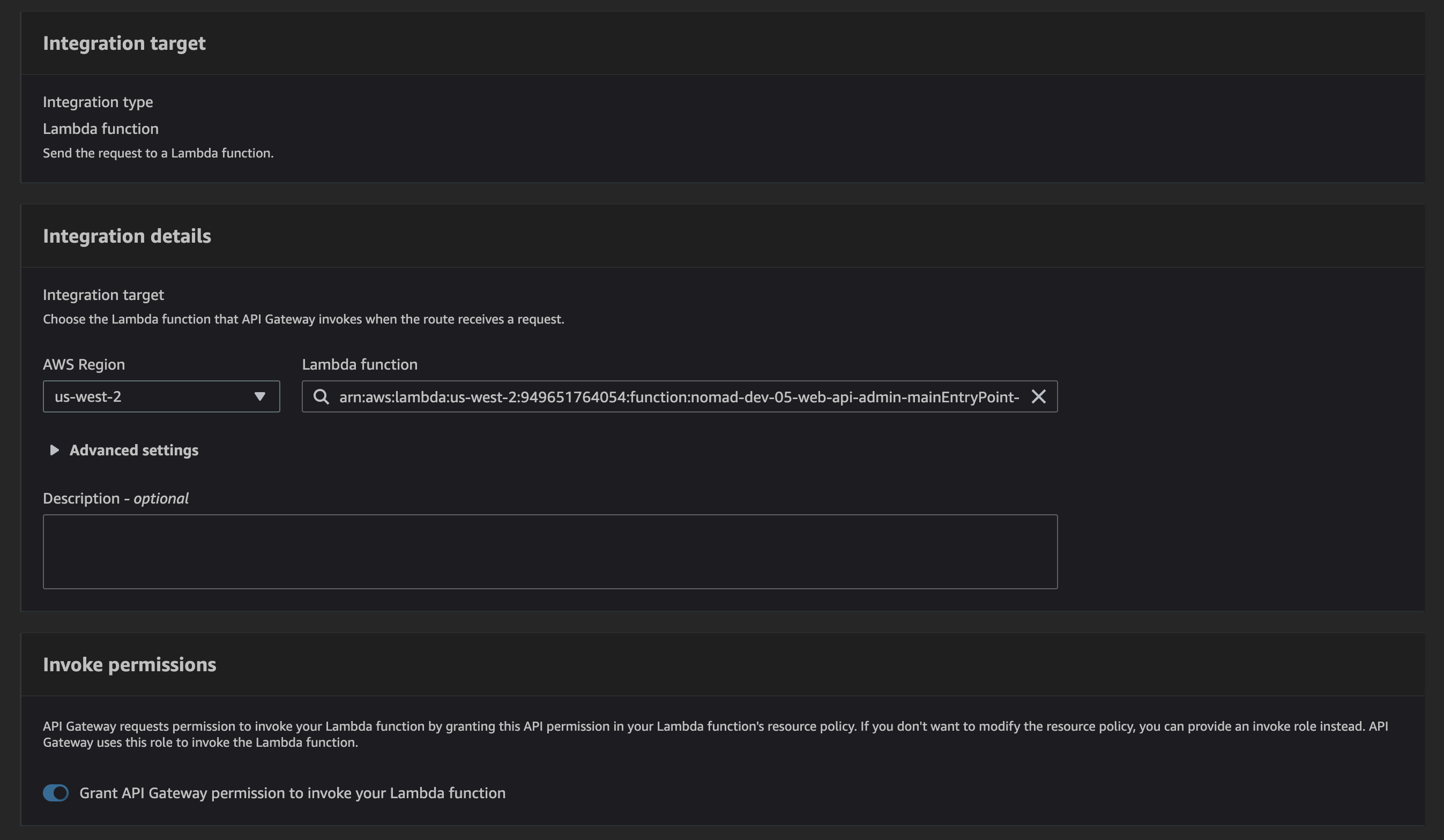
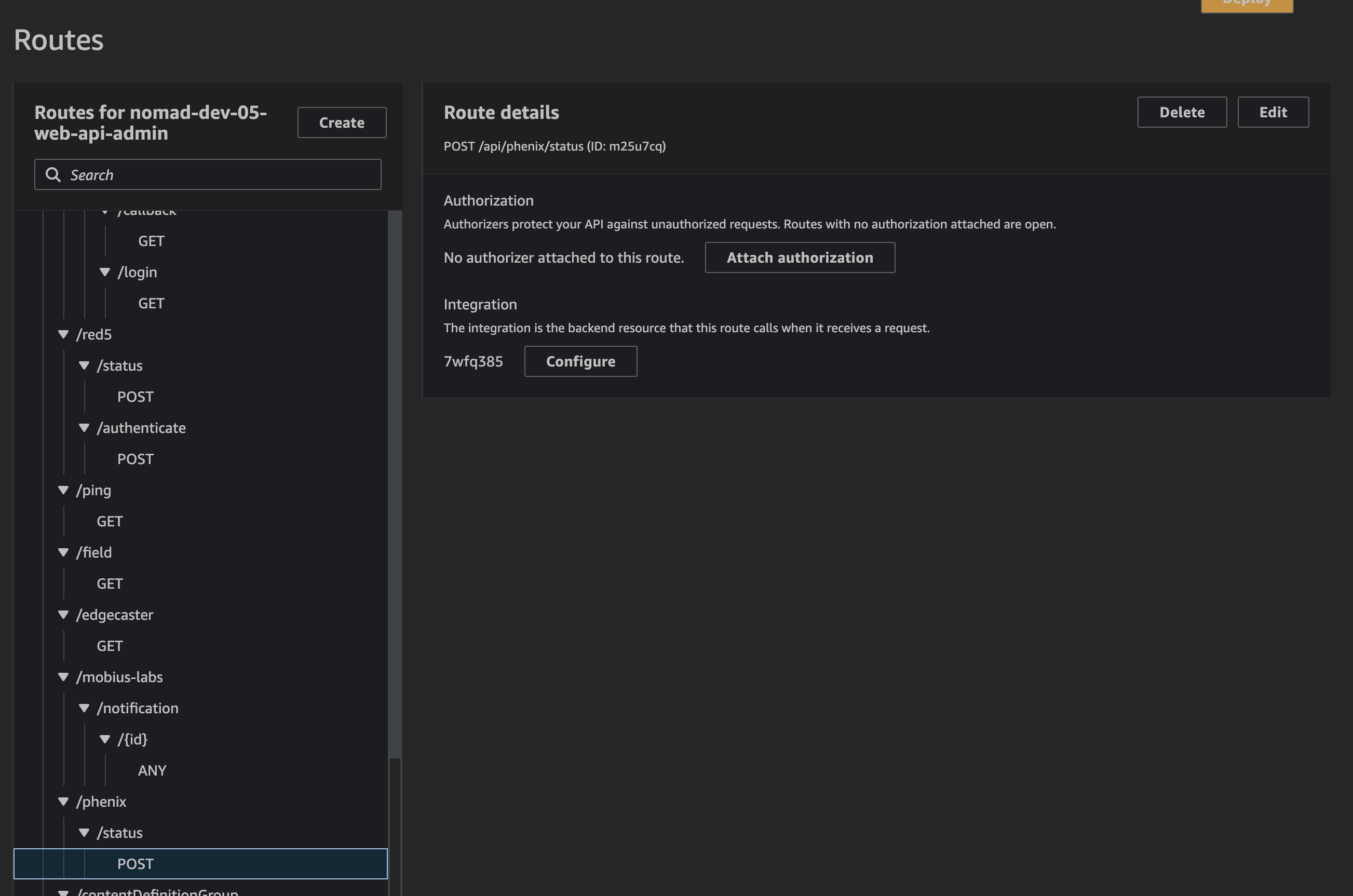
6. Register Nomad Media API for Webhook Notifications
For Phenix webhook notifications we need to register our app id and point to the Web API admin public route that we created in step 5. Here is an example call to register with Phenix. Note: update the host to match the Nomad Media host you are deploying Phenix to.
POST https://admin-app.dev-05.demos.media/api/phenix/registerWebhook
{
    "callback": {
        "protocol": "https",
        "host": "admin-app.dev-05.demos.media",
        "port": 443,
        "method": "POST",
        "path": "/api/phenix/status",
        "query": ""
    }
}
7. Full Nomad Media API Configuration Settings
Below is the options available to configure for Phenix and example settings. Default options are shown in the comments if the configuration value is not set.
 "application/phenixSettings": {
    // Secret key that contains your app id and secret code
    // [REQUIRED]
    "secretKey": "nomad/dev-05/phenix",

    // List of Phenix Capabilities. This will be used for client token
    // generation as well as building up the RTMP ingest URL.
    // For more information please visit Phenix at:
    // https://phenixrts.com/docs/knowledge-base/reference/capabilities
    // [OPTIONAL] Defaults to hd capabilities
    "capabilities" = [
        "hd"
    ],

    // This is the stream key tag name to sync up Phenix channels
    // to Nomad live channels
    // [OPTIONAL] Defaults to nomadLiveChannelId
    "streamKeyTagName" : "nomadLiveChannelId",

    // Default Edge Auth Digest Token Expiration in Seconds
    // [OPTIONAL] Defaults to 21600 seconds, which is 6 hours
    "defaultEdgeAuthDigestTokenExpirationInSeconds" : 21600,

    // REST Domain/hostname
    // [OPTIONAL] Internally we used phenix urls, if they change update it here
    "RestDomain" : "pcast.phenixrts.com",

    // REST port
    // [OPTIONAL] Defaults to 443
    "RestPort" : 443,

    // REST Protocol
    // [OPTIONAL] Defaults to https
    "RestProtocol" : "https",

    // REST main route
    // This would follow the rest domain, i.e. mysites.com/mainRoute
    // [OPTIONAL] Defaults to pcast
    "RestRoute" : "pcast",

    // Url Rest Template
    // If you need to override the full url use this instead of the
    // individual Rest configuration values. Intended for testing.
    // [OPTIONAL]
    "UrlRestTemplate" : "https://pcast.phenixrts.com:443/pcast",

    // RTMP Domain/hostname
    // [OPTIONAL] Defaults to ingest.phenixrts.com
    "RtmpDomain" : "ingest.phenixrts.com",

    // RTMP port to use
    // [OPTIONAL] Defaults to 80
    "RtmpPort" : 80,

    // RTMP Protocol
    // [OPTIONAL] Defaults to rtmp
    "RtmpProtocol" : "rtmp",

    // RTMP main route
    // This would follow the rtmp domain, i.e. mysites.com/mainRoute
    // [OPTIONAL] Defaults to ingest
    "RtmpRoute" : "mainRoute"

    // Url RTMP Template
    // If you need to override the full url use this instead of the
    // individual RTMP configuration values. Intended for testing.
    // [OPTIONAL]
    "UrlRtmpTemplate" : "rtmp://mysite.com:1935/mainRoute",

    // Does this streaming service support recording
    // [OPTIONAL] Defaults to false
    "IsRecordingEnabled" : false,

    // Is channel managed externally outside of Nomad
    // [OPTIONAL] Defaults to true
    "IsChannelExternal" : true,

    // Is realtime service enabled
    // [OPTIONAL] Defaults to true
    "IsEnabled" : true,

    // Http Client timeout in MS
    // [OPTIONAL] Defaults to 10000 MS
    "HttpClientDefaultTimeoutInMS" : 10000
  },
Phenix Support Information
For obtaining your appliction id and secret the preferred use is one of these following methods below:
- email: Contact Phenix
- slack channel: @partner-phenix
- website: contact phenix
To see the status of the Phenix system, please visit here
Phenix RTS Website located here
Phenix RTS documentation located here
FAQ
At this current time, there is no two way sync between Nomad Media and Phenix. If you create or delete a live channel from the Phenix Portal, that channel's changes will not get synced back to Nomad Media. However, you can kill/stop a live channel from the Phenix portal and that will be reflected inside Nomad Media.
Updated 7 months ago