
Minio Configuration
Minio buckets can be added as external buckets to your Nomad Media installation. This guide assumes that you have already setup your Minio implementation and already have at least 1 bucket that you're trying to add.
Setup the API Key
The Minio webhook callback is secured by an authorization header API Key. Follow the steps in the [API Key Authentication](../Getting Started/authentication-guide) to create the API Key. The key will be used later in this process.
Register the Event webhook
More information on registering Minio events for webhook callbacks can be found here: https://min.io/docs/minio/linux/administration/monitoring/publish-events-to-webhook.html#minio-bucket-notifications-publish-webhook.
OPTION 1: Command Line
Register the Webhook with the command line on the minio server:
set MINIO_NOTIFY_WEBHOOK_ENABLE_Nomad-Media="on"
set MINIO_NOTIFY_WEBHOOK_ENDPOINT_Nomad-Media="https://{{admin-service-api}}/api/s3/webhook"
set MINIO_NOTIFY_WEBHOOK_AUTH_TOKEN_Nomad-Media="ApiKey {{keygoeshere}}"
mc admin service restart {ALIAS}
OPTION 2: Web UI
Register the Webhook with the web UI of the minio server:
- Navigate to the Minio Events menu.
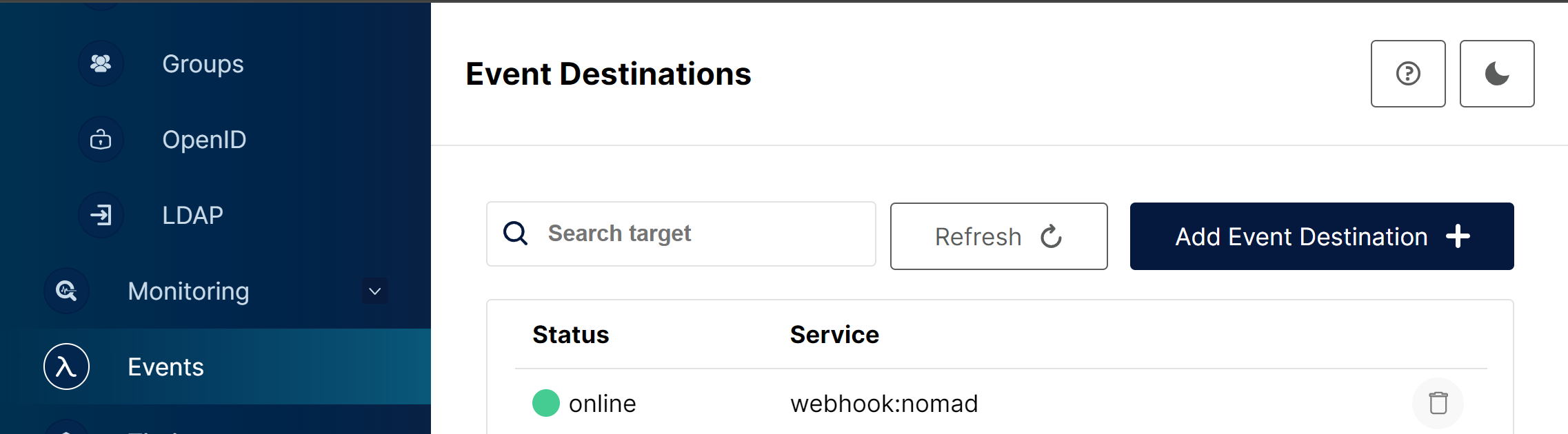
-
Click "Add Event Destination". Scroll to the bottom of the list and select "Webhook".
-
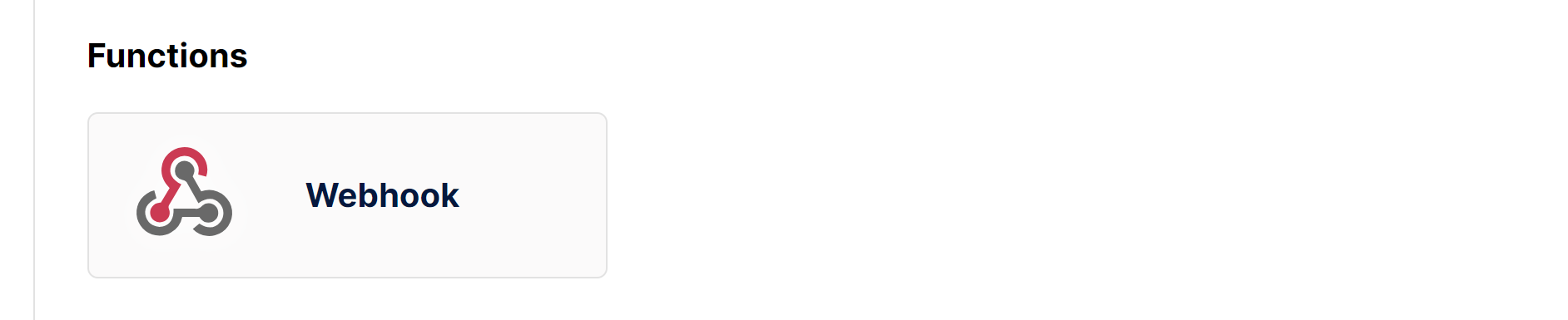
Enter nomad-media as the identifier and the endpoint is the URL of your admin API URL with "/api/s3/webhook". The Auth Token does not allow entering spaces in the UI, so either use the command line or copy/paste into the field the ApiKey.
Subscribe to Events
- Navigate to the Bucket that you want to be watched from Nomad Media and click Subscribe to Event:
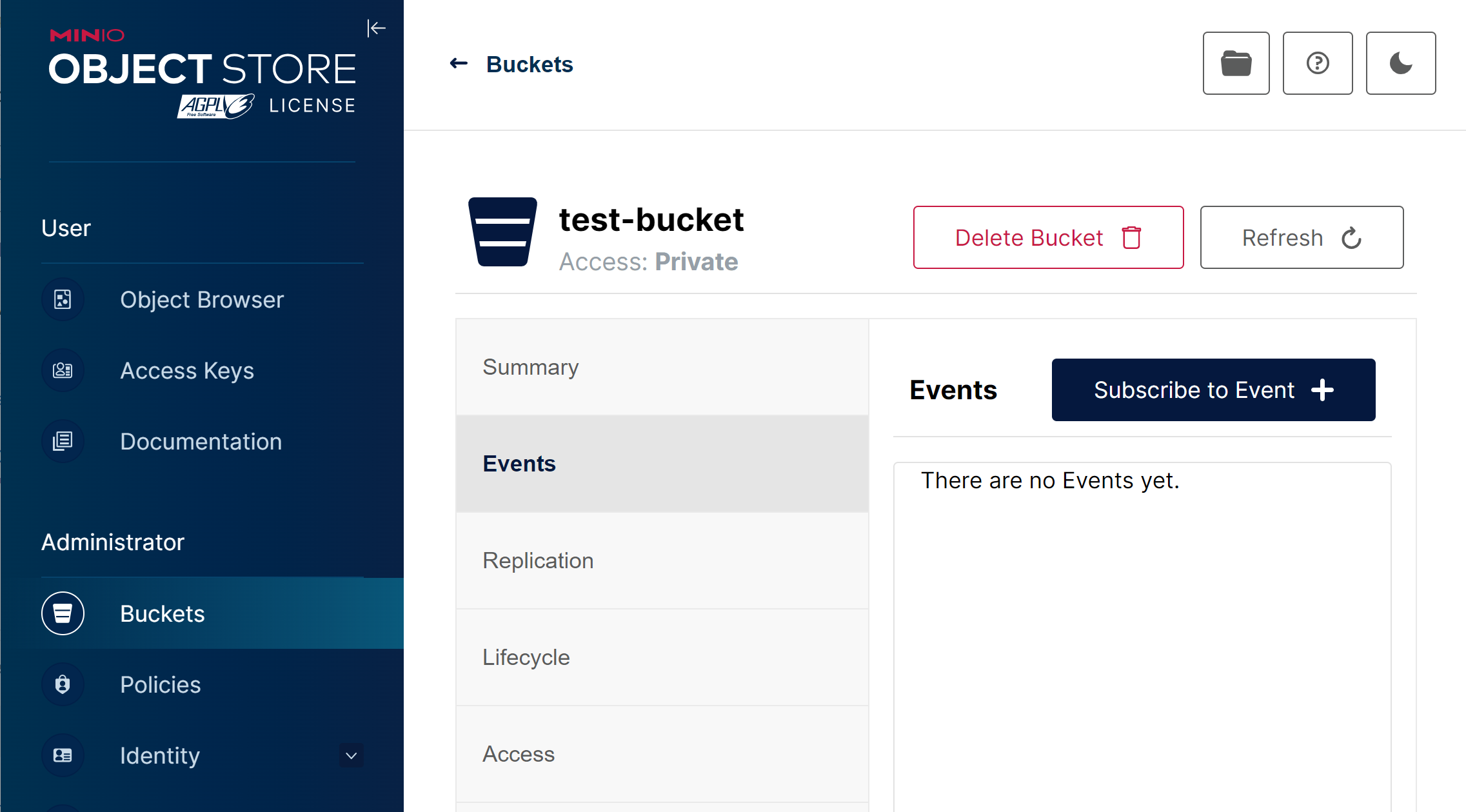
- Select the webhook ARN that was previously created and select the PUT, DELETE and ILM events. The Prefix is optional in case you only want to monitor a sub-folder of content.
Setup CORS policies
Make sure to copy the same S3 CORS policy for the existing S3 Content bucket to the new minio bucket also. This enables the CORS access from the Nomad Media applications in the browser.
Updated 7 months ago