
Annotation Configuration
Out of the box Nomad Media installations you will be able to see basic annotation information via the content portal, however you can also extend via custom HTML templates.
Basic Edit Annotation View
As of right now, Nomad Media supports adding annotations to videos or images. To annotate videos, you can choose either a single frame or a range of frames for annotations.
Without any configuration the out of box Nomad Media installation will have this for annotation entry
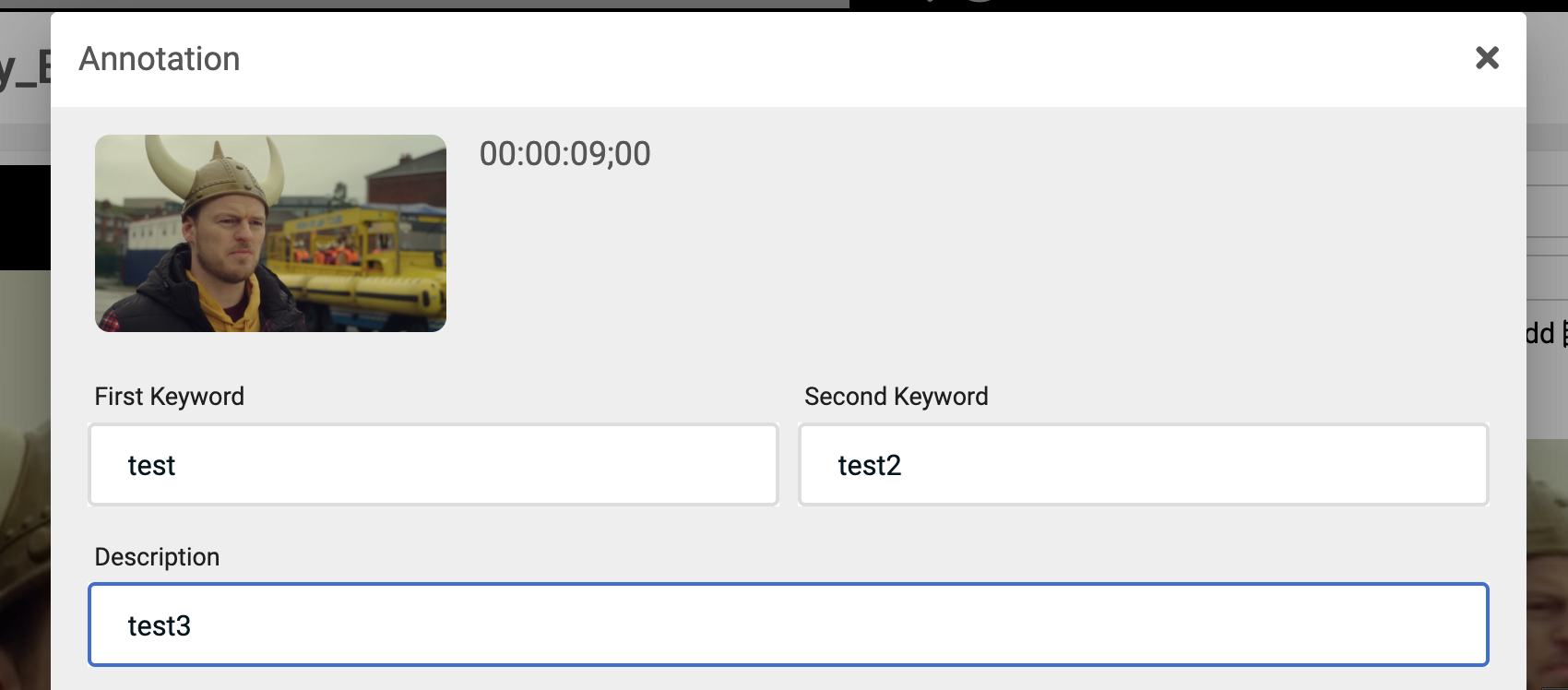
As of now, the following basic data types are supported: string, boolean, numbers, and related content drop-downs. See here for example configuration/output showcasing all the supported annotation fields.
This is what it will look like the full view.
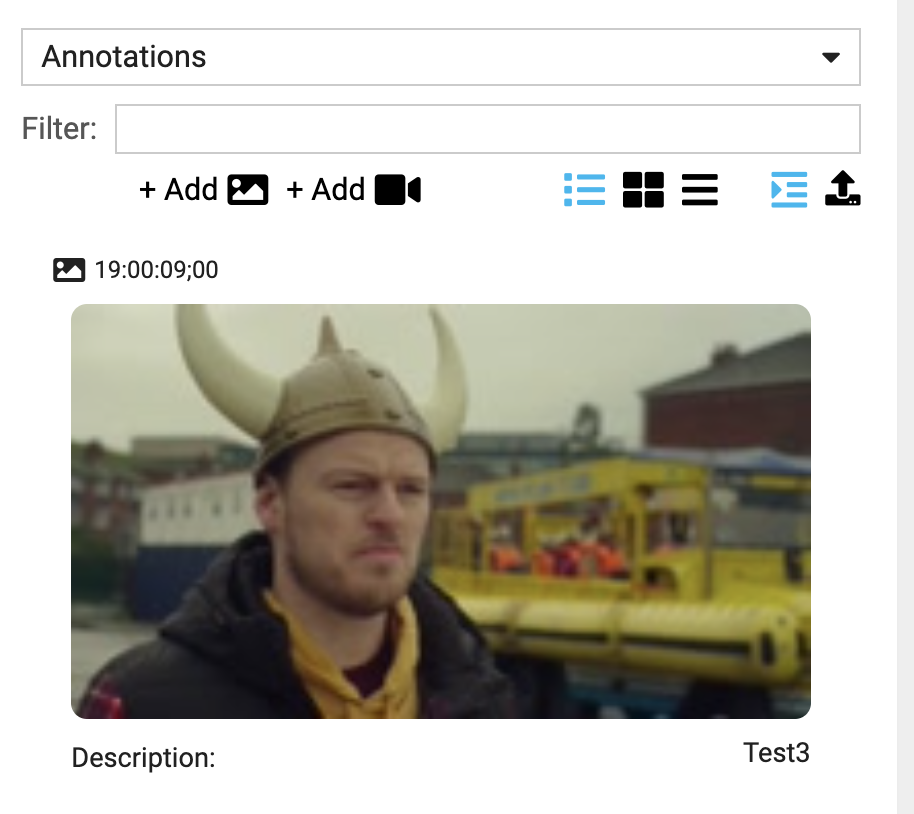
And this is what it will like in the list view.
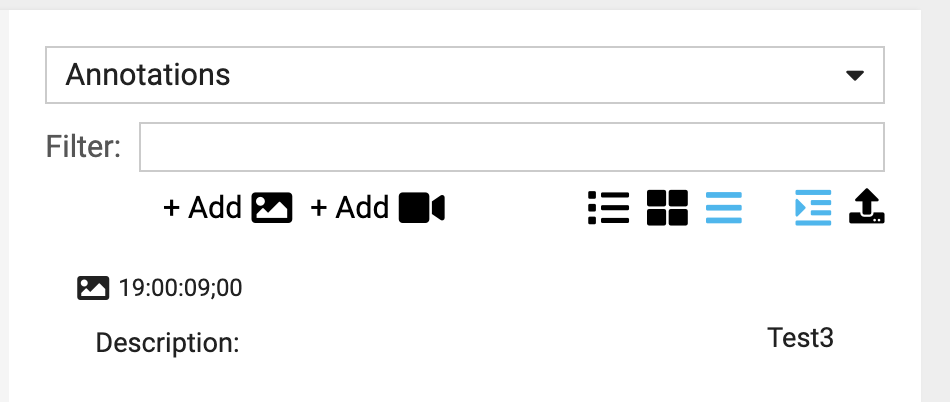
This is the standard configuration from our portal.json file. If you want to learn more, please follow this link to learn more about the portal.json configuration file.
Description is the only field with listOrder and that is a requirement to show in the list/full views.
  "annotationAttributes": [
    {
      "title": "First Keyword",
      "property": "firstKeyword",
      "order": 1,
      "type": "string",
      "isRequired": true,
      "width": "half"
    },
    {
      "title": "Second Keyword",
      "property": "secondKeyword",
      "order": 2,
      "type": "string",
      "isRequired": true,
      "width": "half"
    },
    {
      "title": "Description",
      "property": "description",
      "order": 3,
      "type": "string",
      "isRequired": true,
      "listOrder": 1
    }
  ],
Adjusting the Basic Annotation List View
We can adjust the basic annotation list views to include the titles and adjust their ordering. Here is example of that.
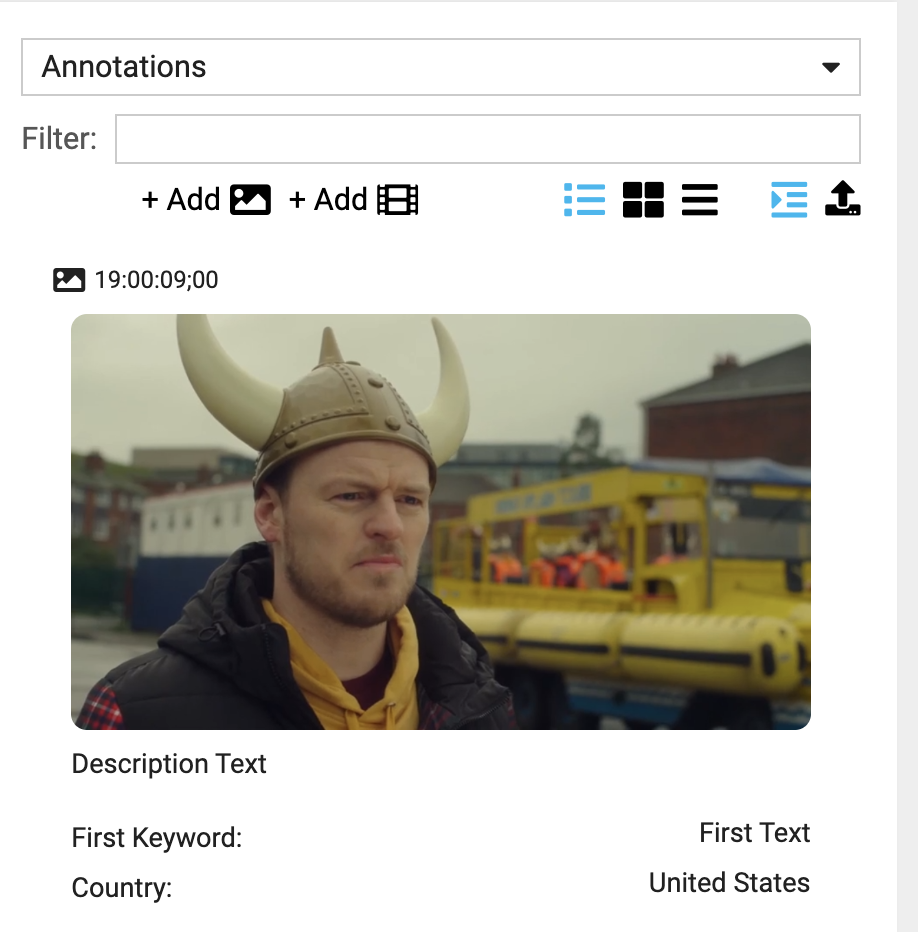
Here are the configuration changes that altered the view. Note in this example we added an additional field to showcase related content drop down. Second Keyword does not show because it is missing the listOrder property. The showListTitle property defaults to true and is not included by default. To remove the title you need to set it to false.
"annotationAttributes": [
    {
      "title": "First Keyword",
      "property": "firstKeyword",
      "order": 1,
      "type": "string",
      "isRequired": true,
      "width": "half",
      "listOrder": 2
    },
    {
      "title": "Second Keyword",
      "property": "secondKeyword",
      "order": 2,
      "type": "string",
      "isRequired": true,
      "width": "half",
      "showListTitle": false
    },
    {
      "title": "Description",
      "property": "description",
      "order": 3,
      "type": "string",
      "isRequired": true,
      "listOrder": 1
    },
    {
      "title": "Country",
      "property": "country",
      "listOrder": 4,
      "type": "lookup",
      "lookup": "country",
      "isRequired": true,
      "width": "half",
      "defaultLookupId": "cee90a86-ea42-4723-801b-568851296481",
    }
]
Custom HTML Templated Annotation List View
If you want to create your own templated HTML output for annotations there is a different configuration setting for this called: annotationListTemplate This setting overrides the basic view settings. Note if you want to omit a field then simply do not include it with the config setting. To reference a property in the template string surround the property with curly braces. i.e. {country}
This is the list of basic HTML formatters that we currently support.
- <b> Renders text in bold.
- <i> Displays text in italics.
- <u> Underlines the text.
- <s> Renders the text with a strikethrough.
- <sub> Formats the text as a subscript.
- <sup> Formats the text as a superscript.
- <em> Emphasizes the text.
- <strong> Makes the text strongly emphasized.
- <big> Increases the font size of the text.
- <small> Decreases the font size of the text.
- <ul> Unordered list.
- <li> List item in an unordered list.
Here is example output of previous basic example with some additional HTML formatting.
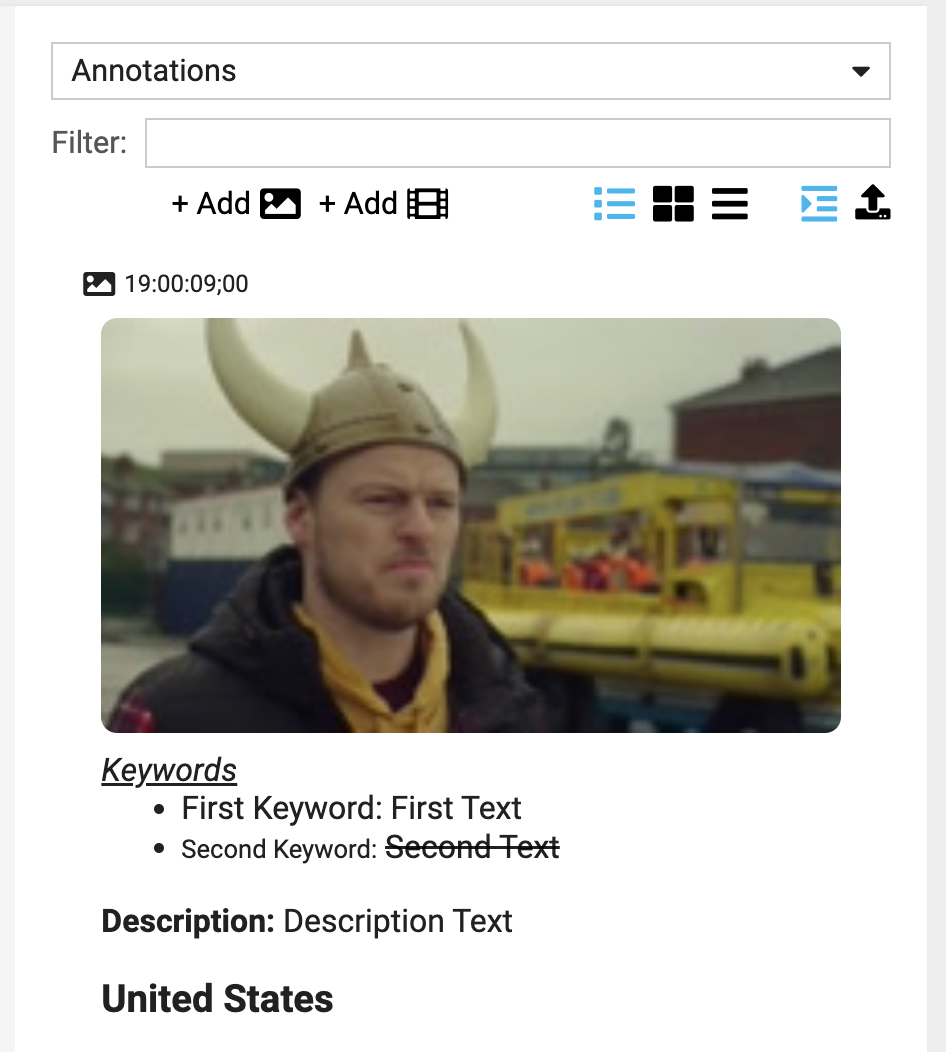
And here is the resulting configuration changes to the portal.json file.
 "annotationListTemplate": "<div><i><u>Keywords</u></i>

<ul><li>First Keyword: {firstKeyword}</li><li><small>Second Keyword:</small> <s>{secondKeyword}</s></li></ul></div><p><b>Description:</b> {description}</p><p><big><strong>{country}</strong></big></p>"
Example of all supporting annotation entry field types
Supported types are: string, number, boolean and lookup (related content)
"annotationAttributes": [
    {
      "title": "First Keyword",
      "property": "firstKeyword",
      "order": 1,
      "listOrder": 1,
      "type": "string",
      "isRequired": true,
      "width": "half"
    },
    {
      "title": "Country",
      "property": "country",
      "order": 2,
      "listOrder": 2,
      "type": "lookup",
      "lookup": "country",
      "isRequired": true,
      "width": "half",
      "defaultLookupId": "cee90a86-ea42-4723-801b-568851296481"
    },
    {
      "title": "Is Valid",
      "property": "isValid",
      "order": 3,
      "listOrder": 3,
      "type": "boolean",
      "isRequired": false
    },
    {
      "title": "Test Number",
      "property": "testNumber",
      "order": 4,
      "listOrder": 4,
      "type": "number",
      "isRequired": false
    }
]
Here is the supported width scenarios, the default is full
  Full = 'full',
  Half = 'half',
  Third = 'third',
  Quarter = 'quarter',
]
Troubleshooting/Tips
The location of the portal.json file is typically located in a similar location as this:
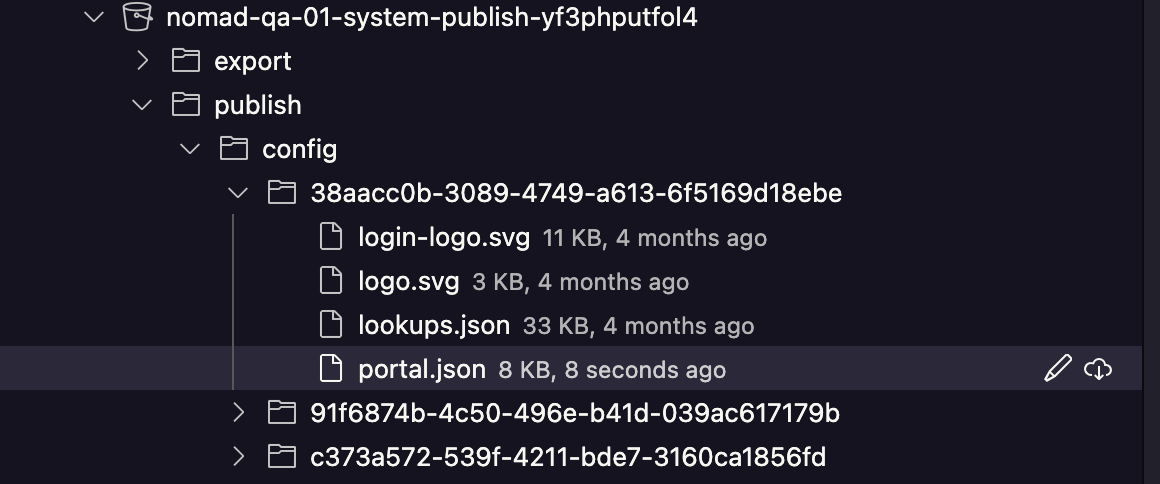
When changing the portal.json file you may need to invalidate the Nomad Media Public Sites CDN along with using incognito mode with your browser to pick up these changes immediately.
Updated 7 months ago