
Adobe Nomad Media Explorer
Set up the Nomad Media Explorer Adobe CS extension to access S3-hosted assets directly from Adobe Premiere, Photoshop, and After Effects.
The Nomad Media Explorer is an Adobe Creative Suite extension that connects your Adobe CS applications directly to your Amazon S3-hosted media assets. With it, products such as Adobe Premiere Pro can access media stored in your S3 buckets without separately downloading files, streamlining media production workflows.
Prerequisites
Before installation you need:
- Sufficient AWS permissions to create an IAM user with S3 bucket access.
- Sufficient workstation privileges to install software and map network drives.
Step 1 — Create an AWS IAM User
An IAM user must be created by an AWS account administrator before the panel can be used. The user needs Access Key permissions enabled, plus an access policy granting the following:
{
    "Version": "2012-10-17",
    "Statement": [
        {
            "Action": [
                "s3:HeadBucket",
                "s3:ListBucket"
            ],
            "Resource": [
                "arn:aws:s3:::nomad-{project}-system-content-ABCDEF"
            ],
            "Effect": "Allow"
        },
        {
            "Action": [
                "s3:GetObject"
            ],
            "Resource": [
                "arn:aws:s3:::nomad-{project}-system-content-ABCDEF/*"
            ],
            "Effect": "Allow"
        }
    ]
}
Replace the Resource ARN with your actual content bucket name. Once the user is created, copy the Access Key ID and Secret Access Key — you will need them in Step 2.
Step 2 — Install S3 Network Drive Mapping Software
The Adobe panel accesses S3 files through a local network drive. Install an S3-capable drive mapping client:
| Platform | Recommended Tool |
|---|---|
| Windows | TntDrive |
| Mac | Mountain Duck |
Configure the network drive client using the bucket name, Access Key ID, and Secret Access Key from Step 1. Map the bucket to a consistent drive letter (e.g., Z:) for easy access.
Note: The free version of these tools runs significantly slower than the licensed version. Purchase a full license for each user.
Mac path for Mountain Duck
To find the mapped folder path on Mac, go to Finder → Go → Home, right-click the bucket name, and select New Terminal at Folder. Type pwd to get the full path.
Step 3 — Install the Adobe Panel
Via Creative Cloud Desktop (recommended):
Find and install the official Adobe Nomad Media Explorer extension on the Adobe Exchange:
https://exchange.adobe.com/creativecloud.details.105665.html
Manual installation (interim releases):
- Download and install the ZXP Installer from https://aescripts.com/learn/zxp-installer/.
- Obtain the Nomad Media Explorer
.ZXPfile from Nomad Media Support. - Run the ZXP installer and drag/drop the
.ZXPfile onto it (or use File → Open).
Step 4 — Configure the Panel
The first time the Adobe Panel launches, you will be prompted for a projectId. Contact your Nomad Media Administrator to obtain this value.
You will then be prompted to set two folders:
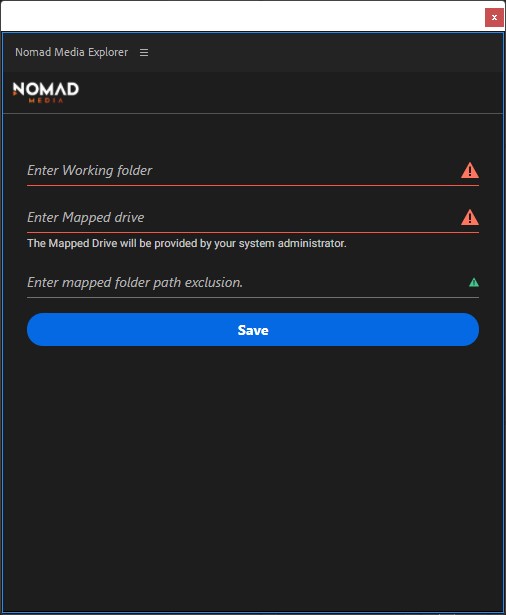
Working Folder
A local directory used for temporary files and project outputs.
- PC: e.g.,
C:\temp - Mac: e.g.,
/Desktop/temp
Mapped Folder
The network drive connected to your S3 bucket by TntDrive or Mountain Duck.
- PC: e.g.,
Z: - Mac: e.g.,
/Users/username/Library/Group Containers/G69SCX94XU.duck/Library/Application Support/duck/Volumes.noindex/bucket-name/
Tip: Ensure both folders have sufficient disk capacity for your work.
After configuring the folders, select your sign-in method and log in using your Nomad Media email and password.
Optional: Okta SSO Integration
If your organization uses Okta SSO, configure the Okta environment before signing in. Contact your Nomad Media Administrator for the Okta configuration steps.
Optional: Multiple Bucket Support
To access content spread across multiple S3 buckets, configure the panel.json file with pathMapping:
"temporaryDirectory": {
    "windows": "F:\\",
    "linux": "mappedDrive/path"
},
"pathMapping": [
    {
        "bucketName": "nomad-dev-05-system-content-qp64ewhdgjb6",
        "localDriveMap": {
            "windows": "F:\\",
            "linux": "mappedDrive/path"
        },
        "contentFolderExcludePrefix": "content/"
    },
    {
        "bucketName": "nomad-dev-05-system-metadata-1jyo5b0ok2n99",
        "localDriveMap": {
            "windows": "G:\\",
            "linux": "mappedDrive2/path2"
        }
    }
]
When pathMapping is present, it overrides the single mapped drive setting and allows the panel to access each configured bucket.
Optional: Mapped Folder Path Exclusion
If the Working Folder root and the S3 path have a mismatched prefix (e.g., the asset path is Content/FolderA/File.mp4 but you want it to map to FolderA/File.mp4 on drive F:), set a Mapped Folder Path Exclusion (e.g., Content/). When set, the panel strips the prefix before computing the local path.
Troubleshooting
Mapped Folder drops after inactivity: The Mapped Folder connection can be dropped by the OS during idle periods, preventing imports into Adobe Premiere. The import cloud icon will turn grey. To fix, open TntDrive or Mountain Duck and re-open the mapped network drive.
Adobe configuration file location (Windows): C:\Users\{username}\.config\configstore
Diagnostics menu: Right-click anywhere in the panel to access the full diagnostics menu.
Updated 7 months ago