
RTMP Sharing Configuration
OVERVIEW
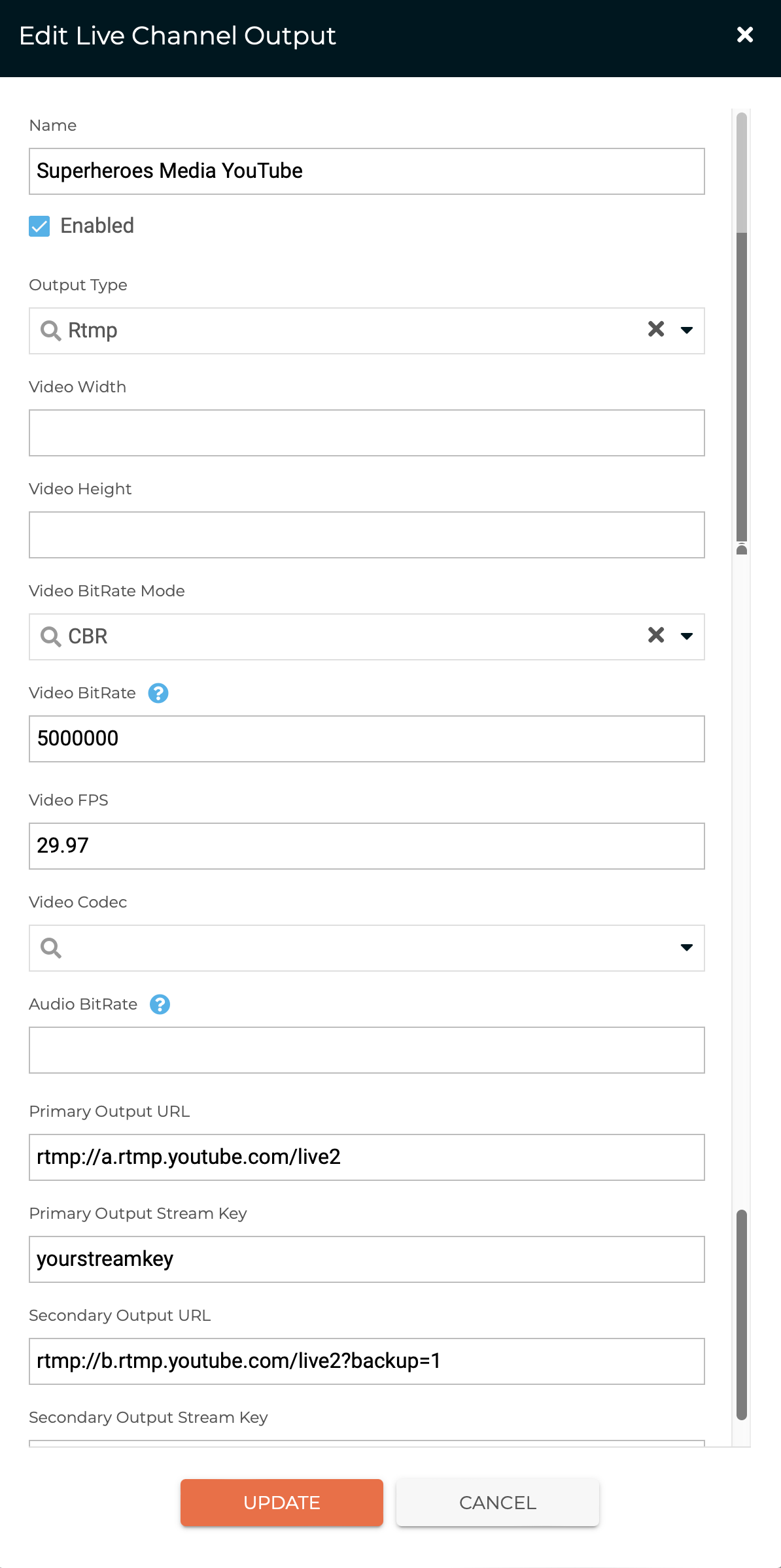
This guide will help with the setups, options and examples for integrating Nomad Media Live Channels with external RTMP sharing services.
PREREQUISITES
1. Obtain your RTMP url and RTMP stream key
YouTube
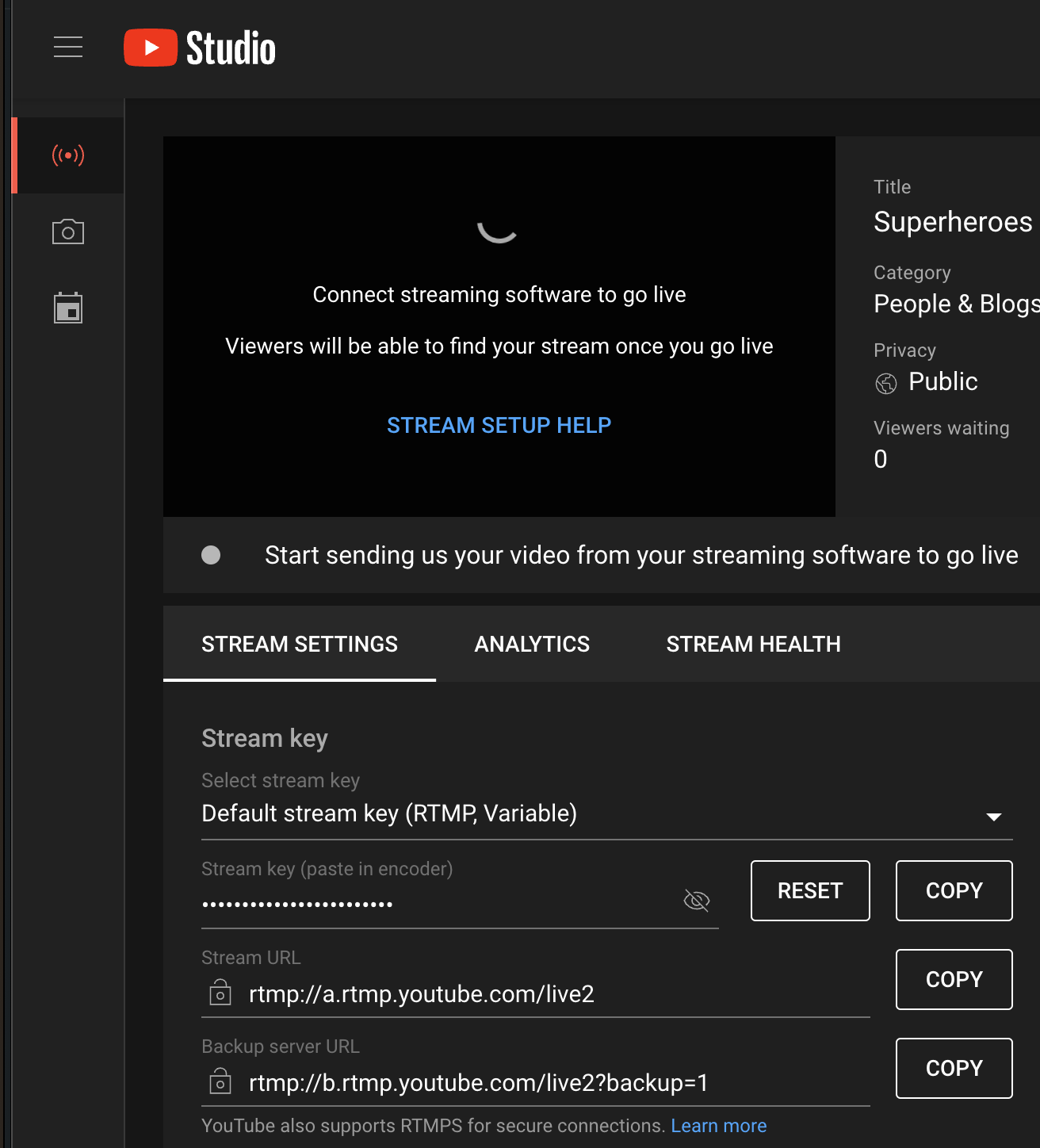
For your YouTube channel navigate to your channel and click on Go Live. This will bring up the screen below where you can find your RTMP stream key and the RTMP url.
Facebook
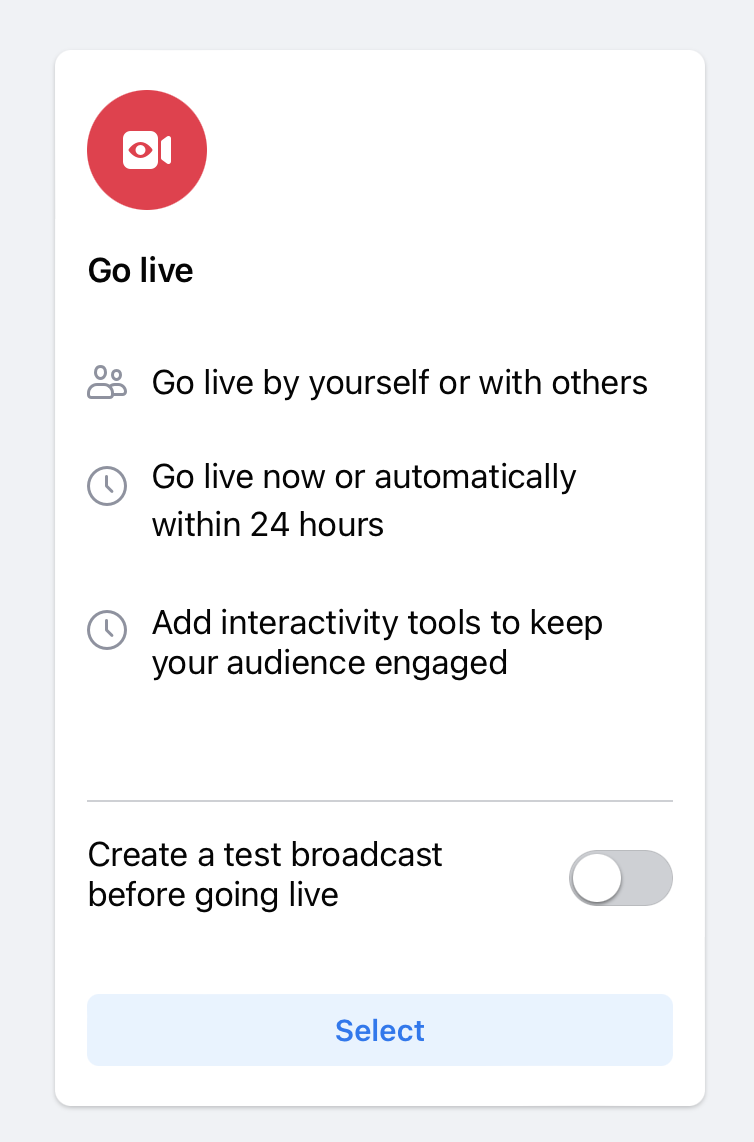
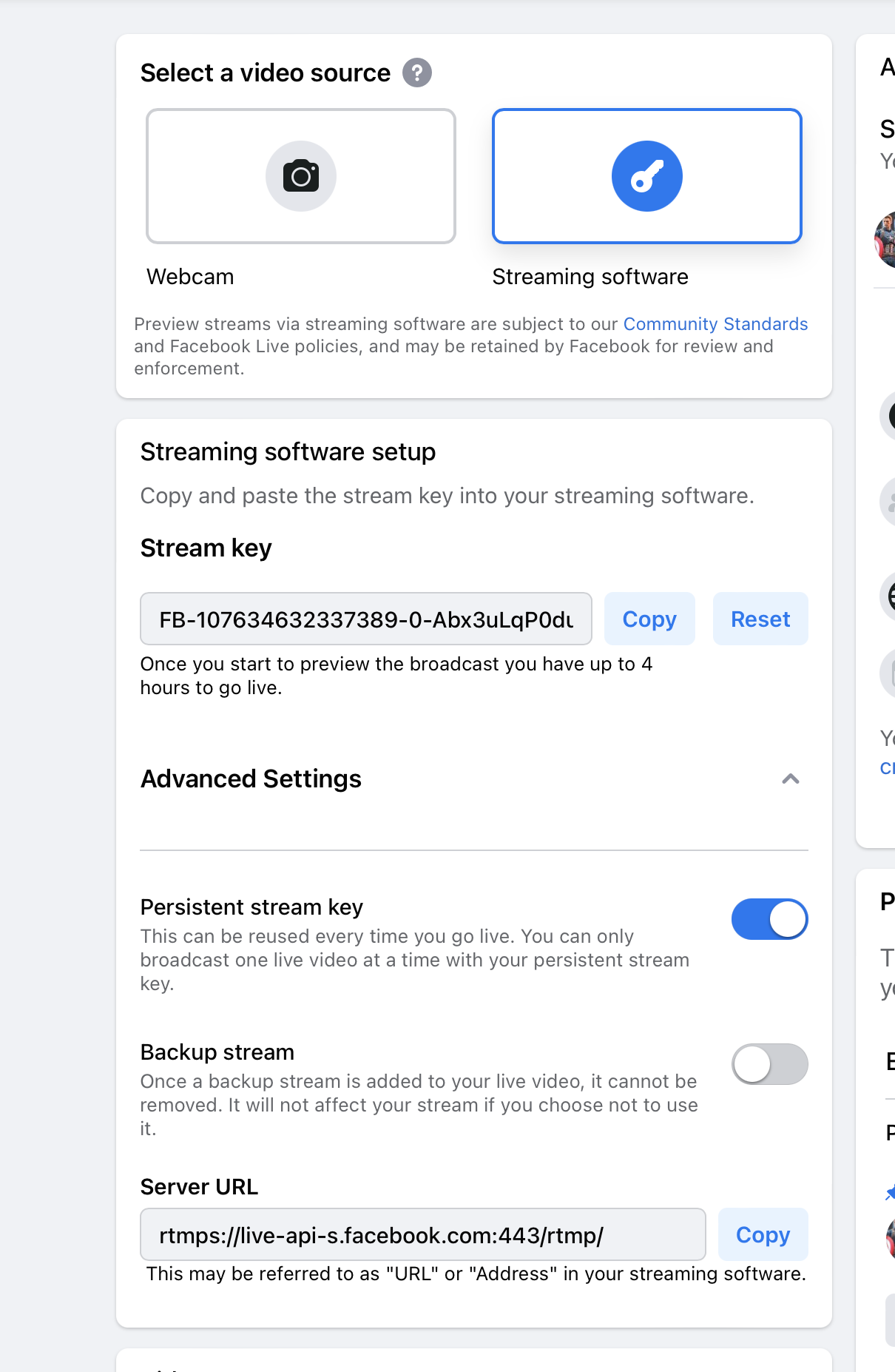
For Facebook, go to your Facebook account and click on Live Video. From there you can either go live now or schedule an event. Once you select that then you will be able to get your RTMP url and RTMP stream key. Copy this down as you will need it to update the configuration.

Make sure you select streaming software box in order to get the RTMP information. Copy the stream key and the server url.
Twitch
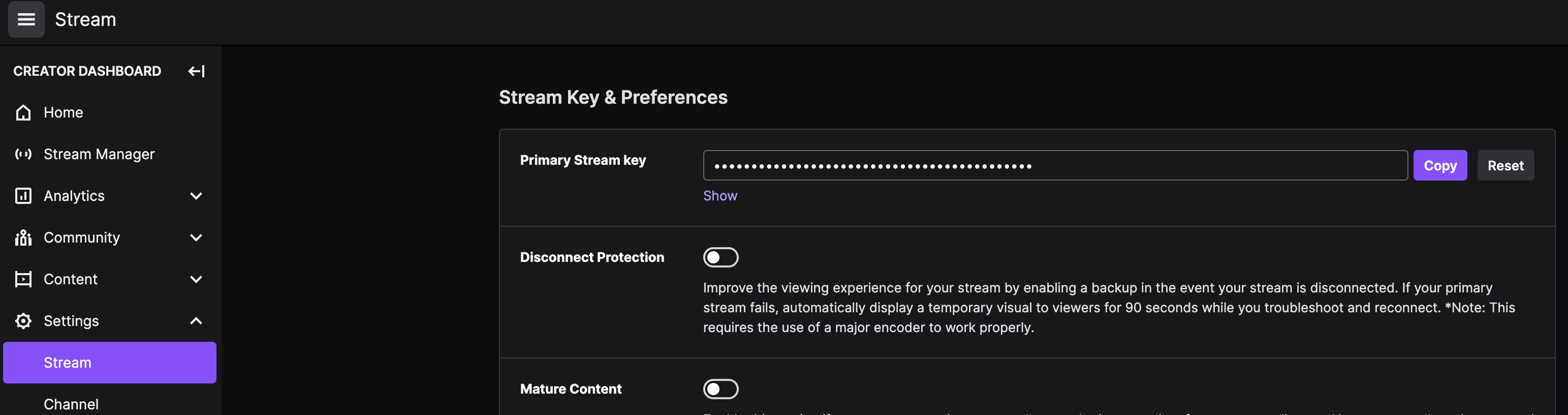
For Twitch, go to your Creative Dashboard and look under Settings and select Stream. There on the right on top you should see your primary stream key. Copy this down as you will need it to update the configuration.
The default RTMP url for Twitch is: rtmp://live.twitch.tv/app
3. Create External Live Output Profile Types
For more information on live output profile types please visit [here](../Core Workflows/transcoding#video-output-profiles).
4. FAQ
Updated 7 months ago