
Custom IFRAME Panel Configuration
You can embed custom IFRAME HTML pages as property panels in the Nomad Media Content Portal.
Overview and Notes
- You will need Nomad Media 2024 Fall Release or higher in order to utilize this feature.
- This feature requires using the custom property panel configurations. To learn more about setting up custom property panels please visit this link: Property Panels
- To avoid CORS issues, you must deploy all pages, scripts, links, images, or styling into the same domain as the Nomad Media Portal.
- Nomad Media does not check or validate any of the custom code that's deployed for these custom panels. You are solely responsible for validating the security aspects of these pages.
Here is an example preview using Nomad Media asset data as an embedded custom IFRAME panel property.
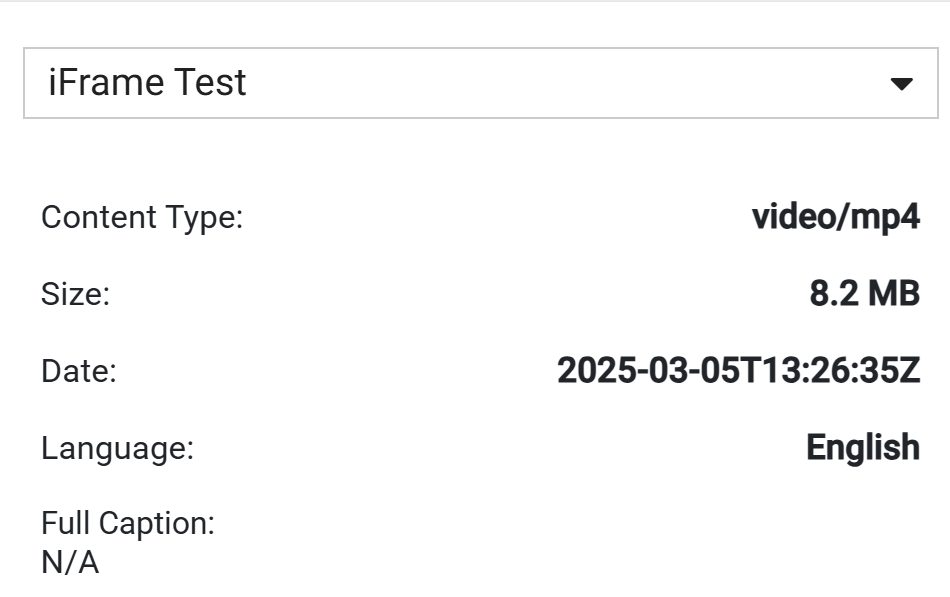
Setup and Configuration
Download the Sample
- Start by downloading the sample code in the GitHub repo found here: https://github.com/Nomad-Media/samples-js/tree/main/iframe-sample.
- Familiarize yourself with the sample code. The most important part is the addEventListener. This allows the main Portal application to send the currently selected Asset to the IFRAME and not require an additional API call.
window.addEventListener('message', function(event) {
  if (event.data.type === 'asset-data') {
    updateAssetData(event.data.payload); // THIS IS YOUR CUSTOM FUNCTION
  }
});- Edit the sample to have it do what you want. Note that the styles included can be used to help follow the same styling as the existing Portal.
Publish to the Public Site
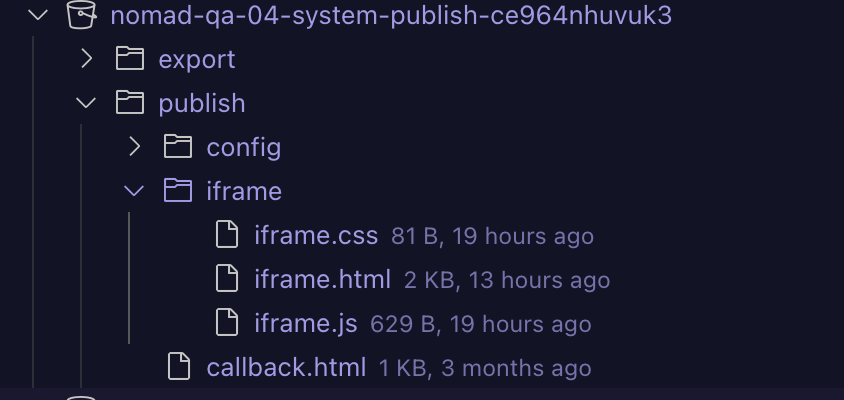
Once the new panel code is ready, you can copy it to the S3 Publish bucket:
- Locate the S3 upload location. The location is in the Public bucket / publish folder.
- Within this folder, you can create a new folder that holds your IFRAME code (in our example, we called it simply iframe).
- Upload the files associated to your IFRAME into this new folder.
Update the Portal.json configuration
- Locate the S3 location of the portal.json file. The location is in the Public bucket / publish / config / id folder.
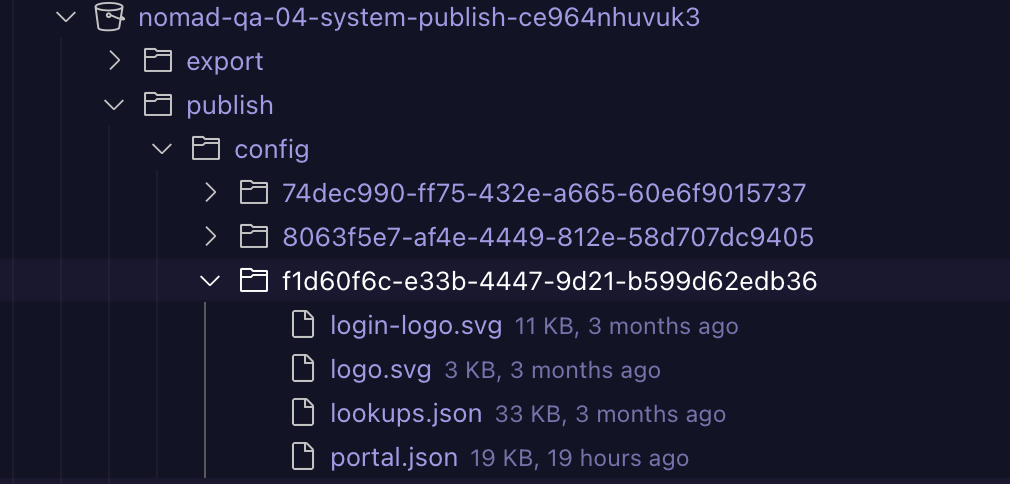
- Locate the property pages top level configuration section in the portal.json file. If one is not found you may add one in.
- The example below just shows 3 custom IFRAME property pages. You can have one or more of these sections to represent each IFRAME. Note all 5 fields are all required fields for each IFRAME. The following fields are used:
-
Property Description title The title of the custom panel in the Portal dropdown name The internal name of the custom panel to use programmatically order The sequence of how the panels are shown in the dropdown type iframe (reserved for other types in the future) url The FULL URL to the IFRAME code that was deployed above
-
  "propertyPages": [
    {
      "title": "iFrame Test 1",
      "name": "iframeTest1",
      "order": 1,
      "type": "iframe",
      "url": "https://qa-04.demos.media/iframe/iframe.html"
    },
    {
      "title": "iFrame Test 2",
      "name": "iframeTest2",
      "order": 2,
      "type": "iframe",
      "url": "https://qa-04.demos.media/iframe/iframe.html"
    },
    {
      "title": "iFrame Test 3",
      "name": "iframeTest3",
      "order": 3,
      "type": "iframe",
      "url": "https://qa-04.demos.media/iframe/iframe.html"
    }
  ],
Customizing your HTML
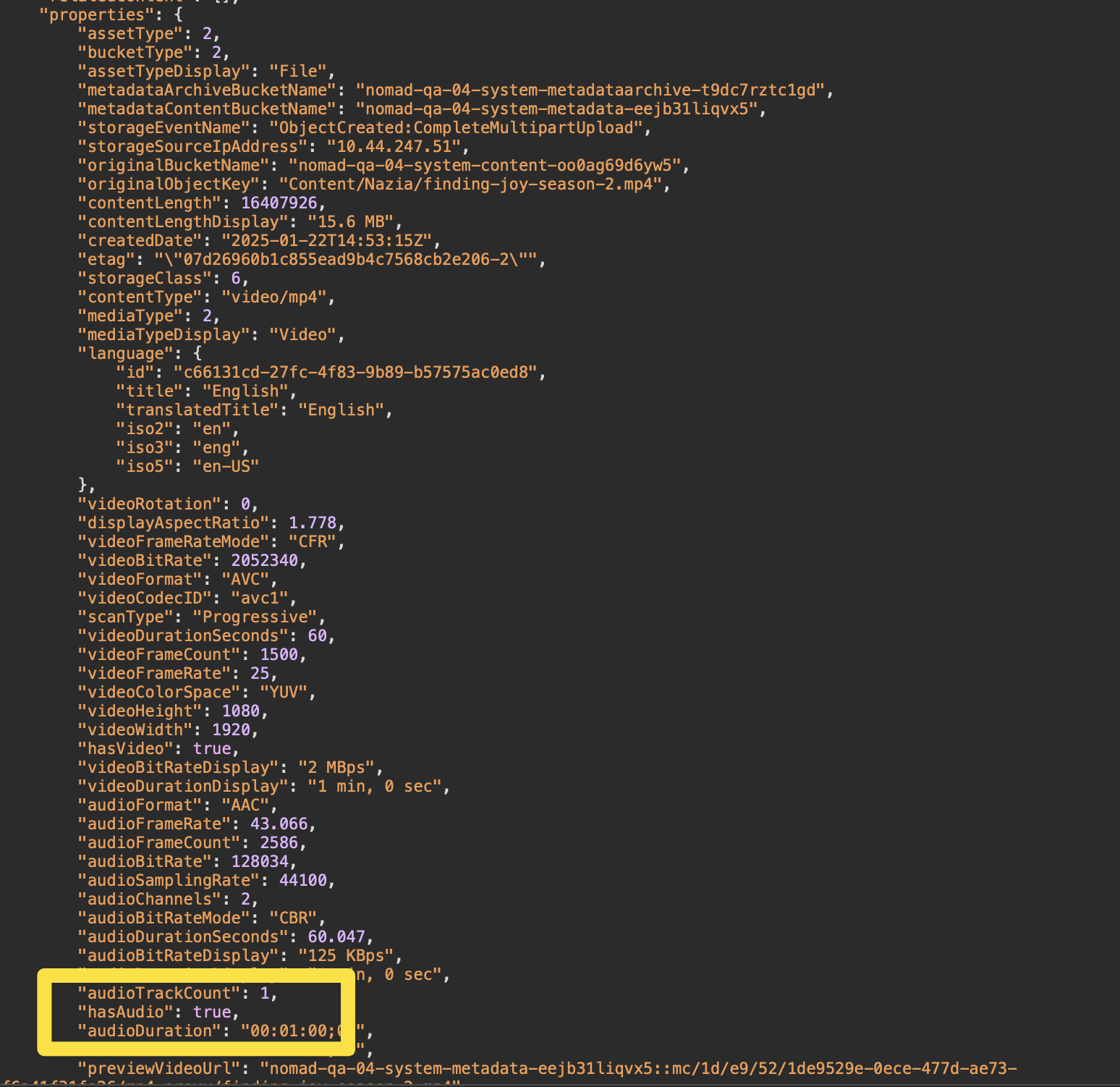
The incoming Asset object (from the event listener) has all of the property values of the Asset. The original API call comes from the "detail" API call for the asset. For example: https://qa-04-api.demos.media/api/asset/1de9529e-0ece-477d-ae73-f6a41f31fa26/detail. You can reference the Nomad Media Asset Detail API call for the reference on all of the fields available. Here's an example:
Nomad Media follows the Angular Material Design bootstrap. More information can be found here: (https://mdbootstrap.com/docs/angular
Tips/Troubleshooting
- Remember to invalidate the Nomad Media Public CDN in CloudFront after making these changes as the URLs are all cached.
- Utilize the browsers
- If you get a blank IFRAME panel or an error message saying content/URL not found then double check that your URL is correct in the portal.json configuration file.
- Whenever there is a new Nomad Media deployment then the styles.css has an import statement and it will slightly change. We will need to update that reference to point to the new deployed version. The new styles.css filename can be found by looking at the network tab for the content portal login page and you can pull that filename from there. This is something that will be made simpler in the future. An example:
@import url("https://qa-04.demos.media/portal/styles.b5e336833409d439ba45.css");Updated 7 months ago